 Written by Obed Cavanzo (Solutions Architect)
A good integration doesn’t end when you ship the code. Instead, it succeeds only when everything works as expected in real-world conditions.
That’s why this guide focuses on helping mobile teams validate their Braze SDK implementation before every release. Specifically, it walks through a step-by-step QA process for push notifications and in-app messages on iOS and Android. By following this approach, teams can catch issues early, reduce risk, and release with confidence.
1. User Identification
Objective
Verify that the transition from anonymous to identified user preserves session history, correctly assigns the session number, and properly reassigns tokens (push, device). This validation is critical for personalization, campaign attribution, and message frequency management.
Validation Procedure
-
Launch the application and complete the user creation flow.
It is important to use a different user for each type of test device. -
Verify that the
changeUser(external_id)method is called in the login flow immediately after a successful registration. -
Confirm in the Braze Dashboard (via Search User) that the new
external_idexists and is correctly associated.
If the user does not appear in the dashboard, review the Braze SDK logs to ensure the function call is executed without errors and with a valid (external_id) parameter. -
Launch the application and complete the login flow.
It is important to use a different user for each type of test device. -
Perform the same validation described in the previous steps.
Diagnostic Tools
-
SDK Logs / Braze Logger
-
Search User (Dashboard)
-
Confirm the existence of the user along with associated properties.
- Documentation
-
- SDK Debugger (Dashboard)
- Optional: create a debug session to capture traffic and errors during the user switch.
- Documentation
2. User Attribute Ingestion and Updates
Objective
Validate that user attributes (email, name, custom attributes) are created and updated correctly, maintain valid data types, respect timestamp precedence, and do not corrupt segments or personalization. This validation directly impacts audience segmentation and dynamic campaign content.
Validation Procedure
In the previous section, you should have executed the flow that creates all user attributes from the SDK (standard attributes using functions such as setFirstName, setEmail, or custom attributes using setCustomAttribute) or via the API (/users/track).
After that, you should:
-
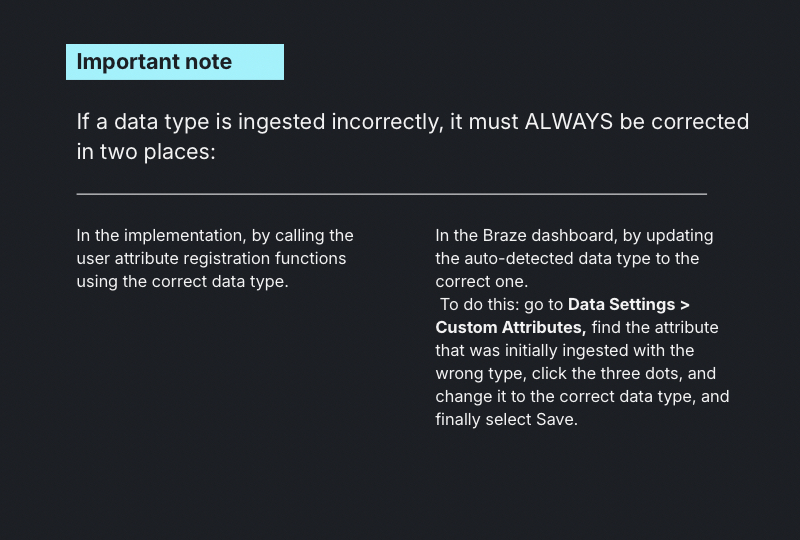
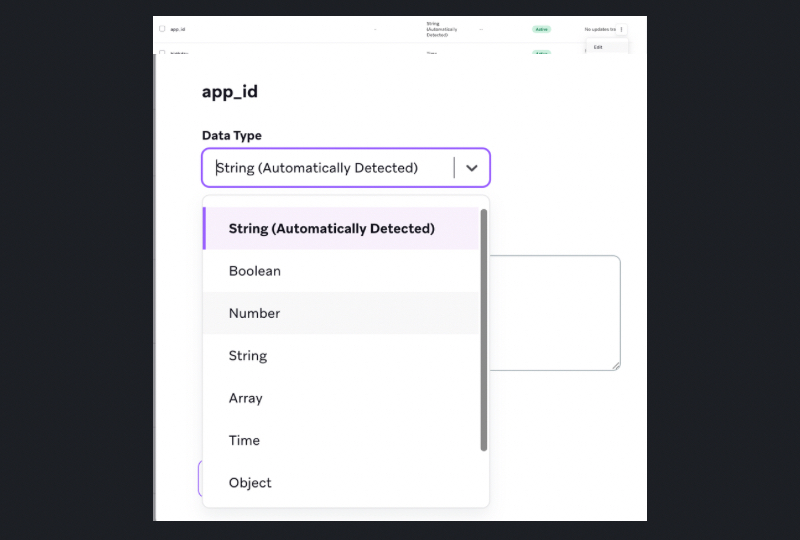
Verify in the dashboard that attributes are displayed correctly, using the defined naming convention and correct data type for each attribute.
-
Validate independently for iOS and Android platforms.
-
Send attributes with incorrect formats or data types (malformed date, string in a numeric field) and document how Braze normalizes or rejects these values.
Diagnostic Tools
-
Search User (Dashboard)
Filter byuser_idand review attribute writes: who sent them, which values, and when. -
SDK Logs / Braze Logger
Identify possible client-side errors when setting attributes.
3. Custom Event and Purchase Tracking
Objective
Ensure that custom and purchase events, along with their properties, arrive with the correct schema, can be used for audience segmentation, and correctly trigger campaigns in Canvas and Campaigns. Without reliable events, triggers and behavioral analytics do not work.
Requirements
-
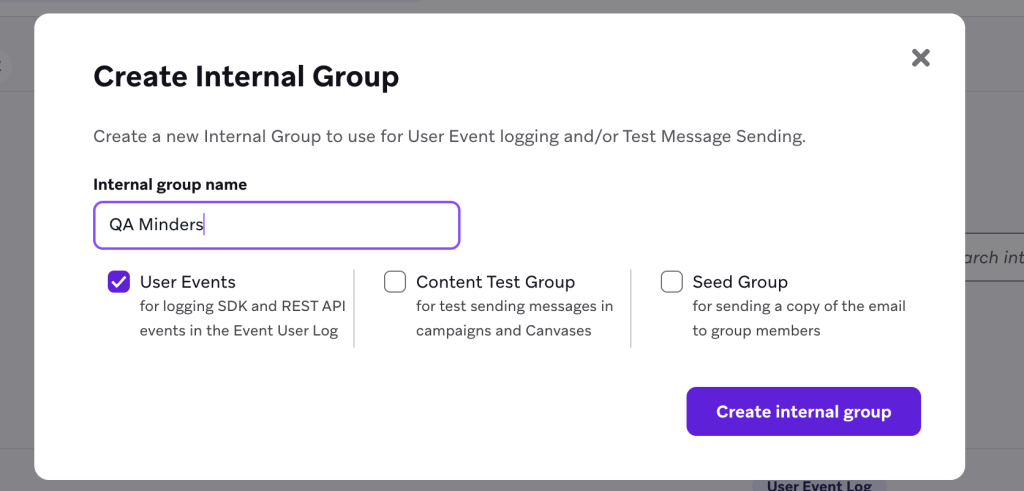
Have an Internal Group created with the “User Events” permission, as well as a test user belonging to that group. This allows viewing event logs in the Braze dashboard for defined test users.
- If no Internal Group exists, create one in Settings > Internal Groups. The Internal Group must have the “User Events” option enabled.
- Add the test user by selecting the newly created Internal Group and clicking “Add test users”.
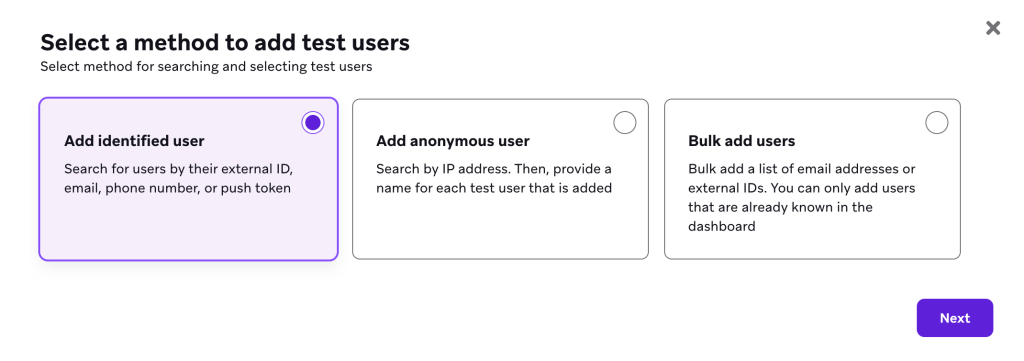
- Search for the test user using the
external_id, select Select User, and complete the flow.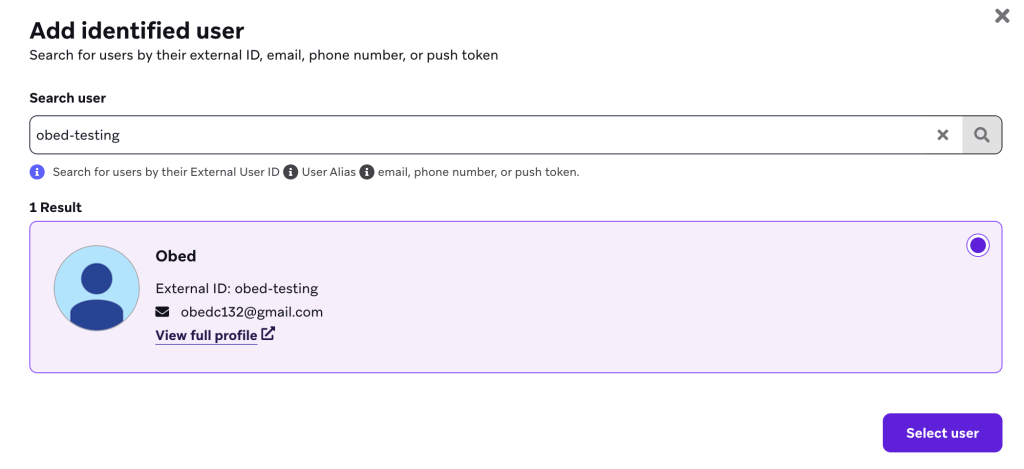
- Add the test user by selecting the newly created Internal Group and clicking “Add test users”.
- If no Internal Group exists, create one in Settings > Internal Groups. The Internal Group must have the “User Events” option enabled.
Validation Procedure
-
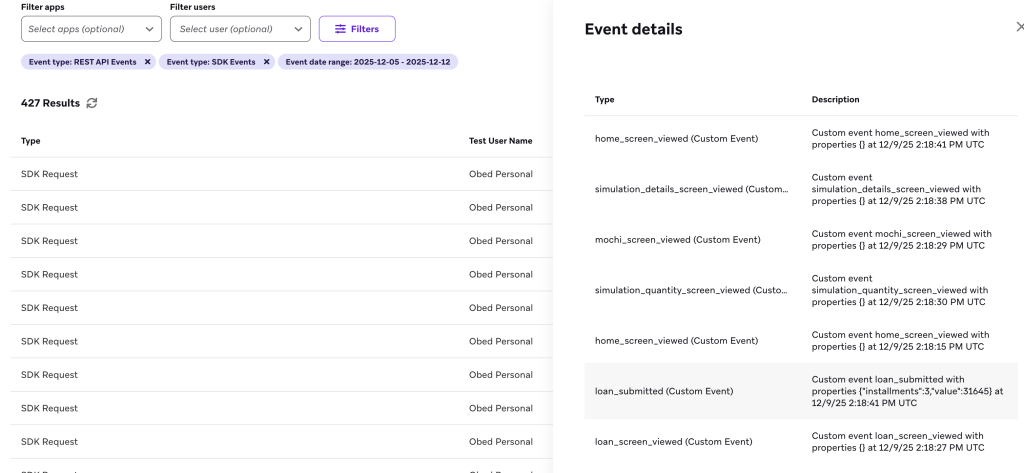
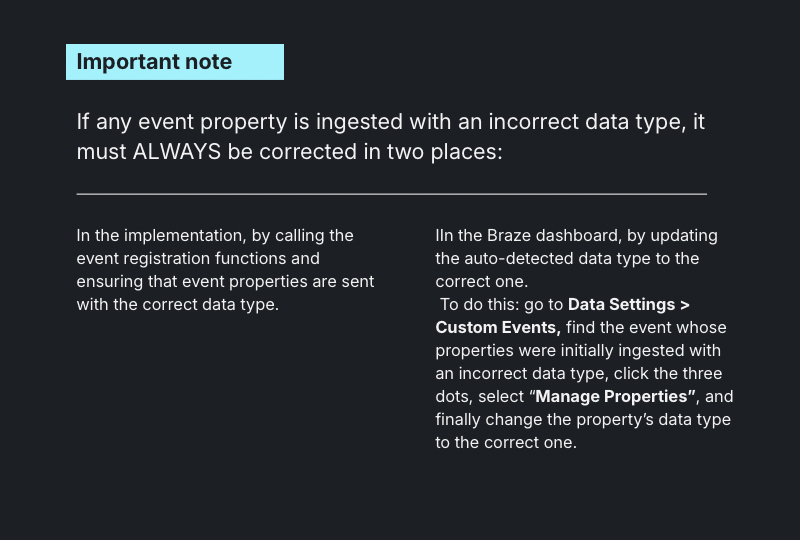
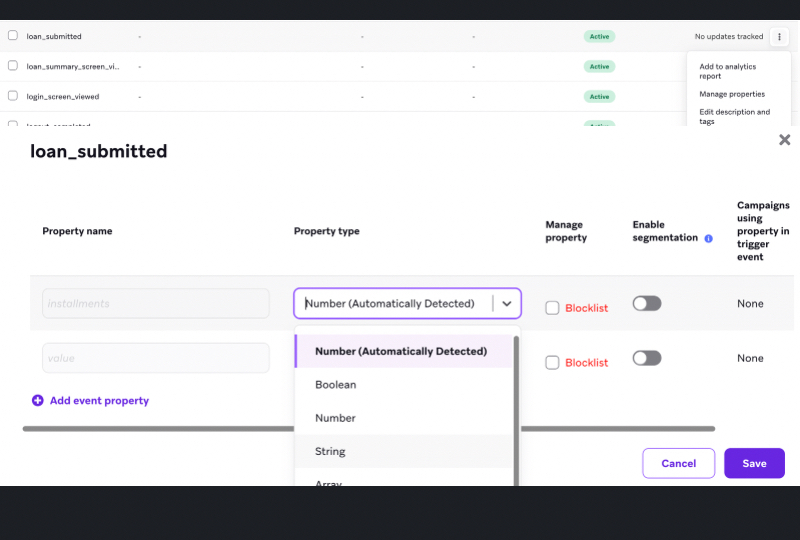
Log in with the test user (created in the Internal Group). Execute all events defined in the tracking plan, along with event properties of different types: strings, numbers, booleans, and dates.
-
Verify appearance in Dashboard → Events and in the Event User Log. Review test user logs and event details to confirm correct ingestion: event naming, properties, and data types.
-
Diagnostic Tools
-
Event User Log
Inspect the event, its properties, and origin (SDK or API). Useful to verify if an event arrived but was not considered for a campaign. -
SDK Debugger / SDK Logs
Verify whether the event was queued/sent and identify client-side errors.
4. In-App Message Delivery and Rendering
Objective
Validate that in-app messages are displayed with the expected logic, appearance, and actions (buttons, links, deep links). It is important to test different layouts, personalization, and display conditions to ensure a correct user experience.
Validation Procedure
-
Use Preview and Send Test in the composer (Dashboard → Campaigns) to validate the visual appearance of the message.
-
Create conditional triggers (e.g., event X + attribute Y) and verify that the in-app message appears only when the defined logic is met.
-
This requires publishing a campaign and including the test users’
external_idvalues in the segment.
Diagnostic Tools
-
Message Activity Log
Review in-app delivery errors, rendering issues, or campaign-specific failures. -
SDK Debugger / SDK Logs
Verify in-app fetch calls and/or client-side rendering errors.
5. Push Notification Delivery and Rendering
Objective
Verify token registration, delivery via APNs/FCM, behavior across different app states (foreground, background, terminated), payloads (deep link, actions, rich media), and performance metrics (delivered/opened). This validation is critical for effective delivery and mobile user experience.
Validation Procedure
-
Verify that when the application launches, the
push_tokenappears correctly on the user profile in Braze. -
Send a Send Test push from the Dashboard to the test device.
-
Test in all three states: foreground, background, and app closed.
-
Test different payloads: title, body, custom keys, deeplink, badge, sound, and rich media.
-
Tap the notification and verify that navigation (deep link) works correctly.
-
Validate delivery metrics by comparing sends → delivered → opened in the Dashboard and tracking APNs/FCM errors.
Diagnostic Tools
-
Message Activity Log
Review sending errors (APNs/FCM), failed deliveries, and specific failure reasons. -
SDK Logs
Confirm token registration and notification receipt on the client.
6. Navigation via Web Links
Objective
Ensure that links in messages (email, in-app, SMS) redirect correctly, preserve UTMs and tracking parameters, and that click tracking does not break cookies or the user experience. This validation directly impacts conversion attribution and campaign analytics.
Validation Procedure
-
Send messages with links that include UTMs and custom parameters.
-
Verify that parameters arrive intact at the destination after clicking.
-
Validate whether the link opens in a WebView (handled by the Braze handler) or in the browser, and confirm that this is the expected behavior.
Diagnostic Tools
-
Custom App Logs
Log custom information to determine whether the web link is arriving correctly and whether the app behaves as expected (open WebView or start another Activity).
7. Navigation via Deep Links
Objective
Test that Universal Links (iOS), App Links (Android), and custom schemes open the app and navigate to the correct content with intact parameters. This validation is essential for conversion flows such as opening a specific product from a notification.
Validation Procedure
-
Optional for Universal Links: verify Universal/App Links configuration on iOS/Android (
apple-app-site-associationandassetlinks.jsonfiles) and that Braze is configured to use them. -
Send deep links via push/in-app/email and test with the app installed: it should open directly.
-
Verify that parameters (e.g.,
?product_id=123) are passed to the app and that internal navigation works correctly. -
Force deep links with invalid data to verify that the app handles fallback correctly without crashing.
Diagnostic Tools
-
Custom App Logs
Observe how the SDK handles the deep link and which handler is invoked.
Appendix: Quick Pre-Release Checklist
Before each production release, verify that the following validations have been completed:
- User identification works correctly on both platforms
- User attributes are ingested with correct naming and data types
- Custom events appear in the Dashboard and activate segments
- In-app messages display according to configured conditions
- Push notifications are delivered in all app states
- Web links preserve UTMs and redirect correctly
- Deep links navigate correctly and handle errors
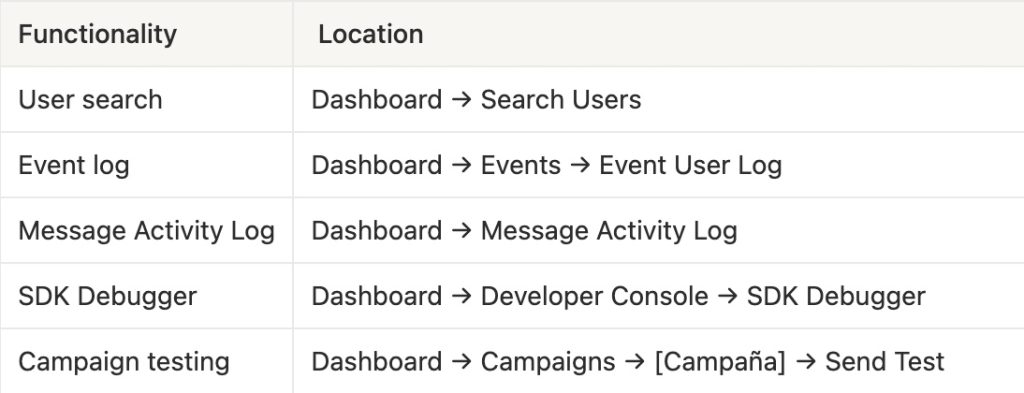
Key Dashboard Locations