AI initiatives don’t deliver measurable impact
One uncomfortable thesis: most enterprise AI initiatives don’t deliver measurable impact — and the gap between those who do and the rest is widening.
That’s what we put forward at AI in Finance 2026 alongside Gustavo Campos, Fintech Director at Mercado Libre, and Martín Fernández Canto, Global Sales Manager at Numia. What follows is a summary of that conversation.
The Gap Is Widening
The Evident AI Index 2025 analyzed 50 banks and reached a clear conclusion: the differential between leaders and laggards isn’t the presence of AI. It’s execution speed, depth of implementation, and measurable impact.
But before talking about who’s ahead, we need to cut through the hype.
In LATAM there are bots that multiply questions but resolve nothing. AI workflows that replace rules with opaque models. AI analytics that generate dashboards nobody looks at. Teams burning tokens without measuring a single outcome.
Two questions separate the 5% that captures value from the 95% that doesn’t: How do you know what’s breaking in your product right now? And how many variables can you decide on simultaneously when communicating something to a customer?
Most companies can’t answer either one.
The Real Shift: Products That Self-Learn
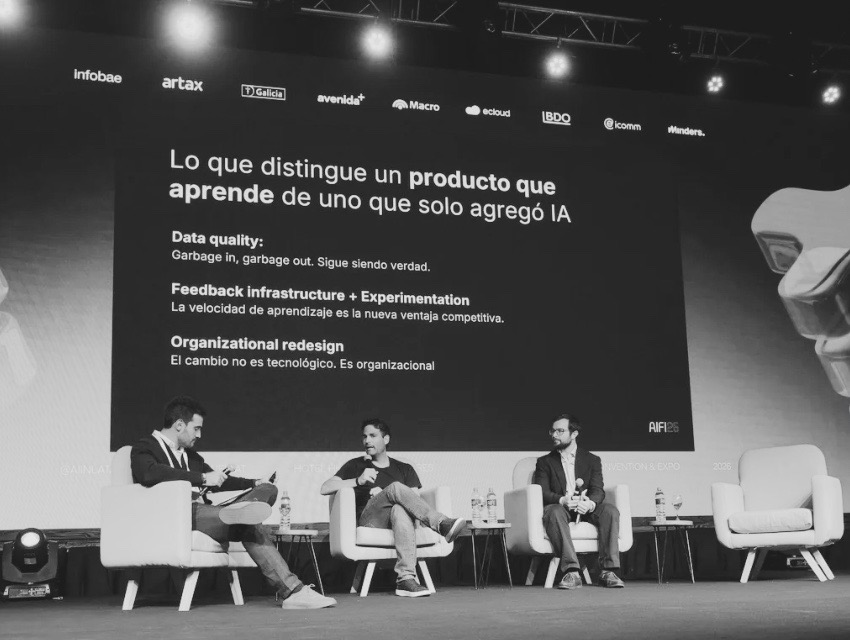
The central claim of the panel is this: the real change isn’t adding AI to your product. It’s building products that self-learn. These are two different things, and most people don’t distinguish between them.
The Mercado Pago assistant case illustrates this well. The key wasn’t adding more AI — it was building the architecture so the product adjusts itself to the user’s signal. That’s what makes the difference.
The 3 Pillars of a Learning Product
What sets self-learning companies apart is no secret. It comes down to three pillars:
01. Data quality: Garbage in, garbage out. Still true.
02. Feedback infrastructure + Experimentation velocity: Most people think feedback infrastructure means “we measure NPS and open tickets.” No. It means every user interaction produces a structured signal that enters the product improvement cycle — without going through a human. And experimentation velocity is the fuel for that cycle: at Mercado Libre, pull requests per day rose nearly 70% in recent months, and the number of different people making them tripled — product people, legal, non-technical teams. That is organizational learning velocity.
03. Organizational redesign: The change isn’t technological. It’s operational. Bringing AI into operations, legal, procurement, risk, and customer experience required redesigning how work is done — it wasn’t “we added an assistant,” it was changing who decides what.
MIT documents this in Project NANDA: 95% of enterprise AI pilots don’t deliver measurable P&L impact within 6 months. The cause isn’t model quality or regulation. It’s what they call the “learning gap”: systems don’t learn or adapt to the organization’s real workflows. BCG adds that only 1 in 4 banks worldwide uses AI for genuine competitive advantage.
The Tools & Science That Make the Loop Possible: Amplitude, Braze & Behavioral Science
Answering the two questions that separate the 5% from the 95% requires the right platforms.
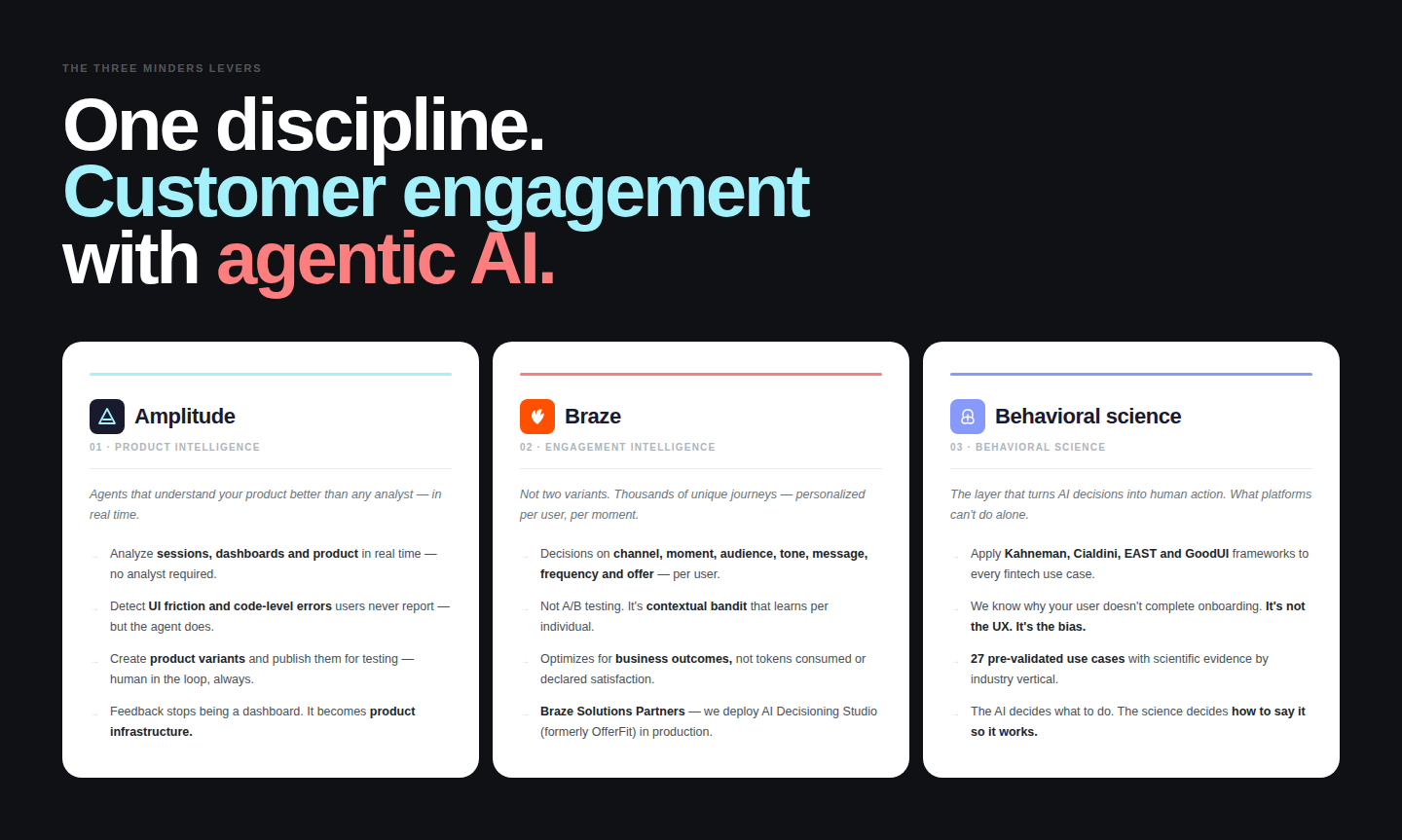
How do you know what’s breaking in your product right now? Amplitude, with its AI agents, analyzes sessions, dashboards, and product behavior in real time — detecting UI friction and errors before any human can. It’s no longer just analytics: it’s intelligence that acts. Liberty implemented it to understand their customers’ complete journey and accelerate product decision-making without waiting for weekly reporting cycles.
How many variables can you decide on in parallel when communicating something to a customer? Channel, timing, audience, product, tone, message, frequency, offer — eight variables per user simultaneously. That’s not an A/B test, it’s contextual decision-making. Braze AI Decisioning Studio does exactly that: it decides the optimal combination for each user in real time without human intervention. Mercado Libre uses it to personalize communications at scale across the region, with measurable outcomes in conversion and engagement.
At Minders we are a Solutions Partner of Braze and implement these platforms at banks and fintechs in LATAM, Spain & US. The advantage isn’t access to the tools — it’s not having to fight with the vendor for six months just to get them working.
The science & the people: But while tools made 70% of the work the other 30% depends on science the human on the loop, that in Minders it’s Behavioral Science.
The Two Sides of Change
There’s a tension at the heart of the panel worth naming:
From the company side: the real differentiator is whether leaders are 100% committed to this — people who understand this means transforming the organization and stay committed beyond the hype of the moment. The path is full of frustration: culture, politics, committees, fear. If those at the top don’t push through that with conviction, no tool survives a quarter.
From the platform side: leader conviction without the right architecture also fails. C-levels deeply committed to transformation end up frustrated after 6 months because they chose the wrong platforms. You need conviction AND architecture — agentic decision-making across multiple parallel variables, with holdout groups, with measurable outcomes.
The summary is simple: commitment without architecture ends in frustration. Architecture without commitment ends in zombie projects. Both together are what separate the 5% from the 95%.
Three Questions for Monday
Concrete and direct:
01. Can you quantify the ROI of your AI over the last 6 months? Not hours saved. Not satisfaction scores. Those are proxies, not outcomes. If the only answer is “it improved the experience,” you’re not measuring — you’re believing. And if you don’t measure outcomes, you don’t have a learning loop. What you have is AI running in circles burning tokens.
02. Does your product self-learn after release? If nothing changes after deployment except a bug fix, it’s not a learning product. It’s a delivery. The question isn’t “did we build what the PRD asked for?” The question is “what did we learn this week that we didn’t know last week?”
03. When was the last time we killed an initiative that wasn’t working? If you can’t remember, you’re part of the problem.
While you’re planning, others are learning.
That difference — over twelve months — is the difference between being on the podium or not.
Want to Keep Learning
These three reports are the most solid ones we found for understanding this moment:
Evident AI Index
Amplitude AI Report 2026
Braze 2026 Consumer trends
Want your company to implement AI with measurable outcomes
At Minders we help banks and fintechs across LATAM implement use cases with metrics, holdout groups, and results in 90 days. We don’t sell transformation, we implement cases with outcomes. Contact us