
written by Marcos Landi (Solutions Architect)
Data is one of the most valuable assets a company can have. Data generates information. Information produces insights. Insights drive actions. Actions create more data and the cycle continues.
The real question isn’t whether your data is useful. It’s how fast you can go from collecting it to doing something about it.
With Amplitude Analytics, you can now bring an AI agent fully loaded with the context of your analytics workspace directly into Slack or Microsoft Teams. Imagine asking a question about your product data the same way you’d ping a teammate. That’s exactly what this makes possible.
A powerful tool, now even more powerful
Amplitude Analytics has long been a go-to platform for product-led growth and marketing analytics. Even before AI, it stood out for its ease of connecting data sources, building charts and dashboards, and surfacing actionable insights quickly.
Amplitude is a reliable source of truth for over 4,500 companies. Now, it goes further: you can interact with a Global Agent that understands your data, respects your Amplitude permissions, draws on your configured AI context, and links directly back to charts and dashboards for deeper exploration.
What is the Global Agent?
The Global Agent is Amplitude’s primary conversational AI interface, embedded directly in the platform and accessible from Slack and Teams. It goes well beyond a typical chatbot:
- Context-aware: It understands the chart or dashboard you’re currently viewing, no need to re-explain your data.
- Data-grounded: Every response links back to actual charts, dashboards, or analyses. It never fabricates inputs.
- Action-oriented: It doesn’t just explain, it creates charts, builds analyses, and suggests next steps.
- Analytics-native: It understands product concepts like retention, funnels, and cohorts out of the box.
📌 Complex questions may take 30–60 seconds for the agent to research and generate a comprehensive answer. Always verify critical business insights directly in your Amplitude workspace.
Requirements
The setup is minimal. you can complete it in under a minute. You’ll need:
- An Amplitude account with Global Agent enabled in your organization (contact your Amplitude admin if you don’t see it)
- A chat platform (Slack or Microsoft Teams) connected to Amplitude via Settings > Personal Settings > Profile
- A paid Slack plan, if using Slack (this restriction does not apply to Microsoft Teams)
- (Optional) Documents uploaded as AI context to improve response relevance
Setting up in Slack
Full documentation: Integrate Slack with Amplitude
Slack is where most teams already live. Connecting Amplitude to it means your data is never more than a mention away.
Step 1: Connect Your Account
- In Amplitude, navigate to Settings > Personal Settings
- Click Profile, then Connect to Slack
- In the new browser tab that opens, click Allow to grant Amplitude access to your Slack account
- You’ll immediately receive a Slack message from Amplitude confirming the connection
📌 If you installed the Amplitude Slack app before January 1, 2026, you may see an “Update Slack” button instead of “Connect to Slack.” Select it and click Allow to re-authorize and unlock Global Agent. If your workspace requires admin approval, Slack automatically submits the request, you don’t need to contact your IT team separately.
Step 2: Enable Link Previews
To see Amplitude chart previews unfurl inside Slack, make sure link previews are enabled. Refer to Slack’s link preview documentation for details.
📌 Amplitude will not unfurl Pathfinder, Compass, or Persona charts.
Step 3: Start Using the Agent
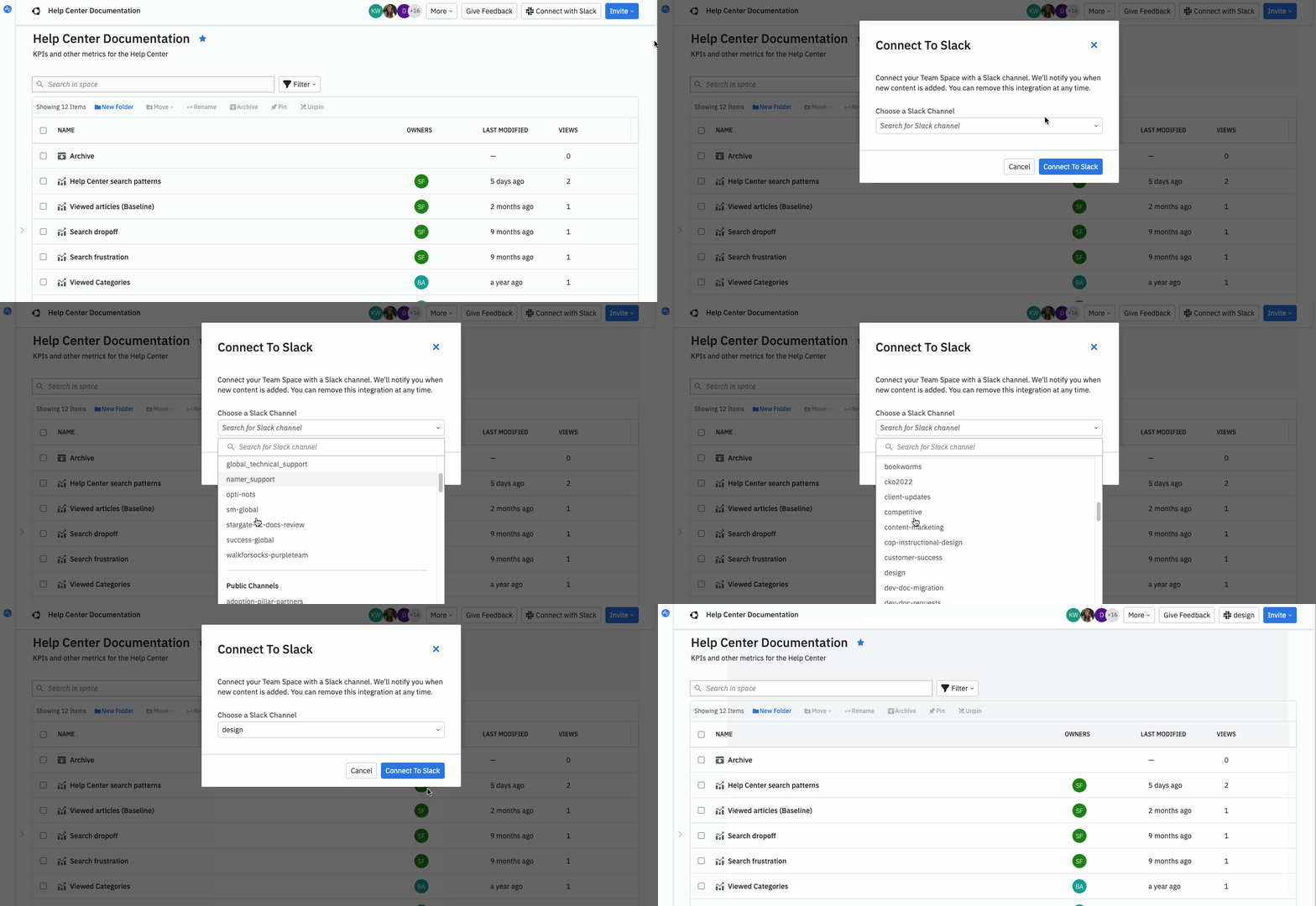
Tag @Amplitude in any channel and ask your question in plain language. The agent will respond with an answer and links to relevant charts or dashboards.
📌 EU Data Center: If your company uses Amplitude’s EU data center, install the Amplitude – EU app from the Slack app directory instead.
Setting up in Microsoft Teams
Full documentation: Integrate Microsoft Teams with Amplitude
For teams working in Microsoft Teams, the setup is equally straightforward — and once it’s done, the experience is seamless.
Step 1: Connect Your Account
- In Amplitude, navigate to Settings > Personal Settings
- Click Profile, then Connect to Microsoft Teams
- In the new browser tab, click Allow to grant access. If you see the “Consent on behalf of your organization” checkbox, enable it to grant access for all members
- The Amplitude bot will send a Teams message confirming the connection
Step 2: Install the Amplitude App in Teams
- On your Profile page in Amplitude, click Install app. This opens the Amplitude listing in the Microsoft Teams App Store
- Click Get it now and confirm the installation
📌 If you’re a Teams admin, installation redirects you to the Teams admin center. Non-admins will trigger an approval request. Admins can approve by navigating to Manage Apps and setting the Amplitude permission policy to allow Everyone.
Step 3: Add the Amplitude Bot to a Team
- In Microsoft Teams, open the target team and click Apps in the bottom-left sidebar. Alternatively, type @ in any message box and select Get agents and bots
- Search for Amplitude and follow the on-screen instructions to add the bot
- After adding the bot, a welcome message will appear. Verify it’s active by typing @Amplitude hi in any channel. The mention should appear as a blue tag.
Step 4: Enable Link Previews
Ensure the Amplitude Teams app has the necessary message extension permissions in your Teams admin center, and that your organization’s Teams policies don’t disable link unfurling. See Amplitude’s Teams documentation for details.
What the Agent can do
Once set up, tag @Amplitude in any active channel and ask questions in plain language — no SQL or technical jargon required. There are three main ways to use it:
Ask direct data questions
- “What are our weekly active users?”
- “How is sign-up to purchase conversion trending this month?”
- “How is MAU compared to last year?”
- “Why did retention drop last month?”
Generate or adjust analyses on the fly
- “Create a funnel from signup to first purchase.”
- “Add a filter to show only mobile users on this chart.”
- “Break this down by pricing plan.”
- “Build a 7-day retention chart for users who signed up in December.”
Discover and review existing work
- “Find our retention dashboard for the mobile app.”
- “Are there any dashboards about checkout funnel performance?”
- “Am I analyzing this chart correctly?”
- “Is my dashboard consistent with the theme?”
📌 Global Agent searches for existing charts and dashboards before creating new ones, helping your team reuse prior analyses and avoid duplication.
A pro tip from a Solutions Architect
Good context in = good outputs out.
Amplitude supports tracking plans that describe exactly what data you’re ingesting. If you add descriptions and tags to your events and follow a consistent taxonomy, your AI agent will have the best possible foundation to deliver accurate, meaningful outputs.
You can further improve response quality by configuring AI Context — documents or descriptions that give the agent more information about your product, metrics, and business goals. To add AI context, navigate to your Amplitude workspace settings and look for the AI Context section. The richer your context, the more relevant and accurate the agent’s answers will be.
How it works under the hood and whether it’s safe
When a user sends a message, the chat client forwards it to Amplitude’s assistant service. The service evaluates the query against your Amplitude workspace and returns an AI-generated answer, complete with links to relevant charts and dashboards. Full technical details are available in the Global Agent overview.
Security is built in by design:
- Role-based access control (RBAC): Everything runs under the Amplitude identity of the requesting user, so permissions are fully enforced. The agent only returns data you can already access in Amplitude.
- Grounded responses: Responses are based on your organization’s configured AI context, not generic assumptions.
- Evidence-backed: Every answer includes references and direct links back to charts and dashboards for further exploration.
- Transparent generation: AI-generated charts are saved to your personal space by default and labeled as generated, so your team always knows the source.
Troubleshooting
If something isn’t working as expected, here are the most common fixes:
- Answers seem incomplete or off-topic: Check which Amplitude project the agent is referencing and use “Change project” to switch. Rephrase your question with more context (platform, date range, key segments).
- Link previews not showing in Slack: Ensure link previews are enabled in your Slack settings.
- Link previews not showing in Teams: Confirm the Amplitude app has message extension permissions and that link unfurling isn’t blocked by your org’s Teams policies.
- Global Agent not responding in Slack: You may need to update your Slack connection. Go to Settings > Personal Settings > Profile and click “Update Slack,” then re-authorize.
- Bot not active in a Teams channel: Type @Amplitude hi in the channel. If the text appears in black instead of as a blue tag, the bot isn’t added to that team yet. Follow Step 3 of the Teams setup above.
Should issues persist, contact your Amplitude administrator or reach out to Amplitude Support. If you’re a Minders customer, reach out to your Martech analyst or Solutions Architect, we’ll help you!
The distance between your data and your decisions just got shorter
The integration is secure by design, lightweight to deploy, and built to fit naturally into how your team already communicates. Your data has always been there. Now it can actually talk back.
Ready to get started? Connect Amplitude to Slack or Microsoft Teams, add it to your team channel, and ask your first question.